Signing in and connecting
Signing in
The bench works without an account. Type a broker, press Connect, and watch. Nothing below is needed for that.
An account gives you three things: brokers you choose by name instead of typing an address, a way back to a session you started earlier, and — for a contractor — the one gateway somebody gave you.
Press Sign in, at the top right, and give your email and your password. Sign out is in the same place.
Accounts are made by invitation. An administrator writes you a link. Open it, choose a name and a password of at least ten characters, and the account exists. The link is good for seven days and works once.

You may also ask for an account. Press Ask for an account, beside Sign in at the top right. Give your name, your email and why you need it, and press Send the request. Every administrator is sent an email about it. If one of them approves it, you are sent the link above by email. If nobody approves it, you are sent nothing.
To change your own password, press Change my password, beside your name at the top. It asks for the one you have now, which is what stops a page you left open on a desk being enough to take your account. Every other browser signed in as you is signed out; the one you are using is not.
On a phone your name at the top is a button. Press it for Change my password, Help and Sign out.
Somebody who cannot sign in at all needs an administrator instead: see When somebody cannot sign in.
There are three roles.
| Role | What it can do |
|---|---|
| Administrator | Everything a user can, and the Users and Presets tabs below. Also sees every session running on the bench. |
| User | Chooses a broker from the list, or types one, as a visitor does. Sees the sessions they started. |
| Contractor | Chooses one of the gateways an administrator gave them, and nothing else. |
What a contractor sees is narrower, and deliberately so. They are usually somebody from outside who is in one building for one afternoon.
- The list holds only the brokers they were given, named by building and gateway. There is no address, no port, no password.
- The Gateway field is gone. The bench uses the gateways on the assignment, whatever the page asks for.
- The AES-128 keys field is gone. The bench holds the keys for the meters on the assignment, and decodes with those.
- A meter that is not on the assignment is not recorded at all: not in the table, not in Explore, not in Export. A gateway hears the neighbours, and those meters are somebody else's.
- Gateway raw data is not shown, and nothing of it is kept.
- There is no Share: a session they cannot narrow is not theirs to hand on.
A contractor given nothing yet sees Nothing has been assigned to you yet.
Connecting
Fill the form and press Connect.
| Field | What to write |
|---|---|
| Choose | Optional, and a shortcut for the rest: one list holding the Presets anybody signed in may use and the brokers this browser has connected to before, under Recent. See below. |
| Broker | The broker's host name, for example broker.example.net. |
| Port | 8883 by default. |
| TLS | Ticked by default. Untick it for a broker without TLS, which is usually port 1883. |
| Username, Password | The broker's own account. |
| Gateways | The gateway's id, for example 700123. For a building with several gateways, write them all, separated by commas or semicolons: 700123, 700456. Leave it empty to hear every gateway on the broker. Up to 50. |
| Topic prefix | Where the gateways publish. Empty means nrg/qgw6direct, the Qundis default. |
| AES-128 keys | Optional. One key per line, 32 hex characters each, for the meters that encrypt. |
| Meters to expect | Optional. The serial numbers of the meters that should be there, separated by spaces, commas, semicolons or lines — a list pasted from a spreadsheet works. A serial shorter than eight digits gets its leading zeros. See Meters to expect. |
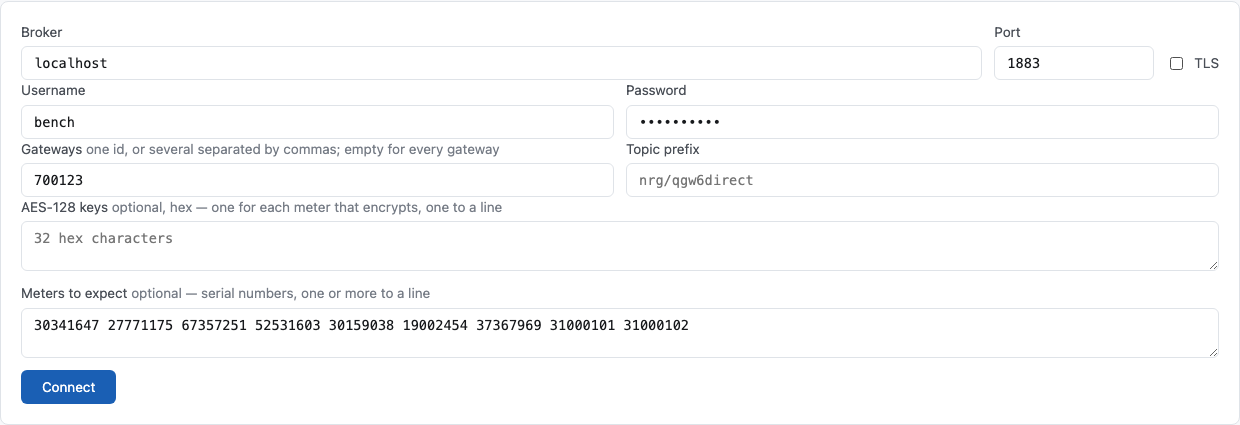
The connection is made by the server, not by your browser. The bench then subscribes to the uplink topics of each gateway you named, or of every gateway when the field is empty.
The Choose list holds both kinds of shortcut, in two named groups: Presets, the brokers an administrator listed, and Recent, the brokers this browser has connected to. A preset reads name · address:port · gateways, and a recent entry the same without the name. They were two lists side by side until 2026-09-23, which meant knowing which of the two a broker was before you could look for it.
Choosing a preset from the list (when you are signed in) fills the dimmed fields with its broker's address, port, TLS, username and prefix, so you can see what you will connect to. The password box stays empty and says Kept by the bench: the page is never told a password. Choose Type a broker below again, and the fields show what you had typed.
A preset that names its gateways decides them. The Gateways field then shows them and cannot be changed: that preset is watched for those gateways, and the bench uses them whatever the page asks for. To watch another gateway on the same server, choose or list a preset for it — Clone on the Presets tab is the quick way. A broker with no gateway on it leaves the field open, so you can write one or leave it empty for every gateway on that broker.
The same holds for its meters. A preset with Meters to expect fills that box, one serial to a line, and closes it: the session expects those meters. A broker listed without them leaves the box to you.
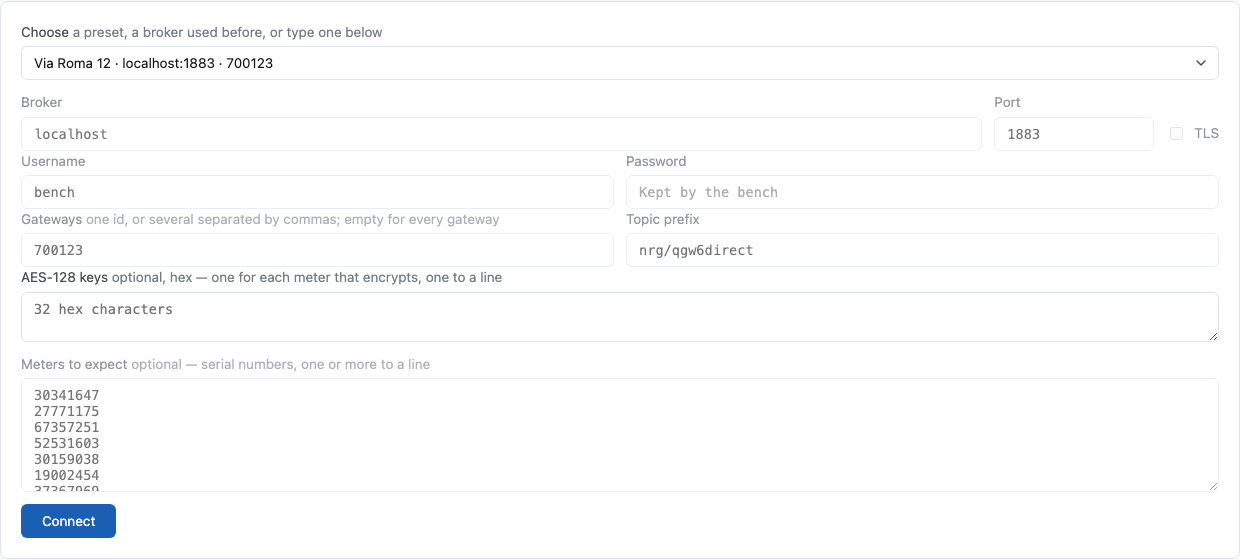
To watch a broker on the bench's own machine, write localhost and port
1883, and untick TLS. Use an MQTT account of that broker; whoever runs
the bench has it. An account that is not an MQTT account is refused by the
broker.
What the browser remembers. The next time you open the page, the broker, port, TLS, username, gateway and prefix of the last connection are already filled. The browser keeps the last five: choose one from the Recent group of the Choose list, above the form, to fill the fields with it. The page never remembers the password or the keys. Your browser's password manager can save the password: accept its offer after you connect, and it fills the password the next time. If you choose a Recent entry for another broker or another username, the password is cleared; click the field to choose the saved one. Type the keys again each time. A preset is not added to Recent — it is in the list already — and choosing a Recent entry sets the list back to Type a broker below, because it is one action and not a choice the form stays in.
The three tabs, and the session
An administrator sees three tabs at the top: Session, Users and Presets. Everybody else sees no tabs at all, because Session is the only one they have.
- Session is where you connect, and where the sessions you can come back to are listed.
- Users is the accounts and the invitations.
- Presets is the list of brokers, with what to watch on each, that anybody can choose by name.
A session is its own page. Once you are connected, the tabs are gone and the page is the session. ← Back at the top brings the tabs back and leaves the session running — so you can list a broker, or invite somebody, without giving up what you are watching. Disconnect is the other thing: it ends the session, and what the session heard stays on the page.