Sessions
Taking the telegrams to the M-Bus Explorer
The table tells you that a meter wants a key, or that its telegrams arrive damaged. It does not tell you what is in them. That is the job of the M-Bus Explorer, and the bench hands the telegrams to it.
- Explore on a row opens that meter's telegrams in the M-Bus Explorer, in a new tab, already decoded.
- Explore, above the table, opens every telegram in the session.
The telegrams travel in the link itself, after the #, so they reach no
server log. A link has a size limit. If a session heard more than fits, the
link carries the newest telegrams and the page says how many of them.
If the browser blocks the new tab, the link appears in a Link box instead, ready to copy.
Explore appears only where the M-Bus Explorer has an address on this installation. To keep a capture, or one too long for a link, use Export below.
Exporting a session
Export offers four files. The first three are the same as on the wired bench.
| Table | Every meter and quantity, with the first value and the latest, as CSV. |
| Frames | Every telegram the session holds, as CSV for the M-Bus Explorer. |
| Raw data | Every message sent to the gateways and received from them, as text. |
| Signal | The signal map, with a row for each meter and gateway, as CSV. |
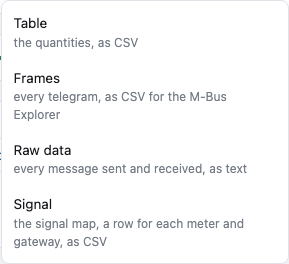
Table and Frames appear once a telegram has arrived. The table has the wired bench's columns, with gateways where that bench has the converter.
Frames is what to take to the M-Bus Explorer: drop the file on its telegram box, and each telegram is dated by when it arrived here. A session holds the newest 10,000 telegrams.
Raw data is for when a gateway does not do what you asked, and the question
is what it said. One line for each message: the time in UTC, the gateway, >
for a message the bench sent or < for one it received, the topic, and the
message as it was. It holds the newest 10,000 messages; where it has had to
forget older ones, its first line says how many.
Signal appears where the Signal section does. It has the same meters and gateways as the map, with one row for each meter and gateway, so you can make a pivot table or a chart from it. The columns:
| serial | The meter. |
| receiver | The gateway, or the serial number of a repeater. |
| kind | gateway or repeater. |
| gateway | The gateway. For a repeater, the gateway it belongs to. |
| rssi | The meter's own signal at the receiver, in dBm. Empty where the receiver has not heard the meter itself. |
| telegrams | How many telegrams of the meter the gateway forwarded. |
| relayed | How many of those a repeater carried. |
| relayed_rssi | The signal of the newest telegram a repeater carried. This is the repeater's signal at the gateway, not the meter's. |
| last_at | When the newest telegram arrived, in UTC. For a repeater, when its scan list was read. |
| link_rssi | For a repeater: its own signal at its gateway. |
A meter that a gateway has not heard still has a row, with rssi empty and telegrams at 0. A repeater has rows only after its scan list was read, one for each meter in the list. The file is the map at the moment you download it: a readout empties its gateway's column, and the rows of that gateway with it.
A session's files can still be downloaded for a few hours after it stops.
Sharing a session
Share shows a Watch link and copies it where the browser allows it. Send the link to a colleague, and they see your session as you see it: the meters, the readings, the log, Explore and Export.
A watch link only reads:
- The person who opens it does not need the broker's password or the keys. They see the readings of meters that encrypt, because your keys read them. Send the link only to somebody who may see this gateway.
- They cannot ask for a readout, stop one, or end the session. The page tells them so.
- Watchers in the summary says how many people have the link open.
The session stays open while somebody is watching it, even after you close your page. A readout you asked for goes on for its whole duration. The session ends, and its readout stops, when the last person stops reading it. Press Disconnect to end it at once, for everybody.
Up to 10 people can watch one session. A link to a session that ended a few hours ago says that it leads to nothing.
A notification when a gateway connects
Press Enable notifications, beside the Gateways heading. The button changes to Disable notifications, and the browser shows a desktop notification each time a gateway of the session connects. The notification names the gateway and says why it connected. Press the button again to stop.
- The first time, the browser asks if this page may show notifications. Answer yes. If you answered no, the button does not change; allow notifications for this page in the browser's settings and press it again.
- When the button changes to Disable notifications, the browser shows one notification at once, Notifications are on. If you do not see it, the system is hiding notifications: check the Focus mode, and the notification settings of the browser in the system settings.
- The page must stay open in a tab. The tab can be behind other tabs and the window can be minimised. With the page closed, nothing is shown.
- A gateway that is online when you press the button is not notified. The next time it connects, it is.
- The browser remembers the choice for your next visit.
Coming back to a session
Loading the page again brings you back to the session on screen, with or without an account. The page keeps the session for its own tab: not in the address, and not for another tab or another person. It is gone when you close the tab. After ← Back, Disconnect or Sign out, the page opens at home.
A list of your sessions, only when you are signed in. A visitor who closes the tab has lost the way back to their session, and it goes on watching without them.
When you are signed in, Sessions appears on the Session tab and lists the sessions you can open again. Press Open it, and the page is watching that session again, with everything it has heard.
An ended session is listed too, after the running ones, for four hours after it ended, or for seven days when an administrator opened it. Open it to read what it heard: the table, the log and Explore work, and the page says the session has ended. Nothing can be sent to its gateways. The red bin beside the time it ended deletes the session and what it heard, after asking; it cannot be read again.
This is also where ← Back leaves you: it comes back to the tabs and leaves the session running, so the row is there to press when you have finished with the other tabs.
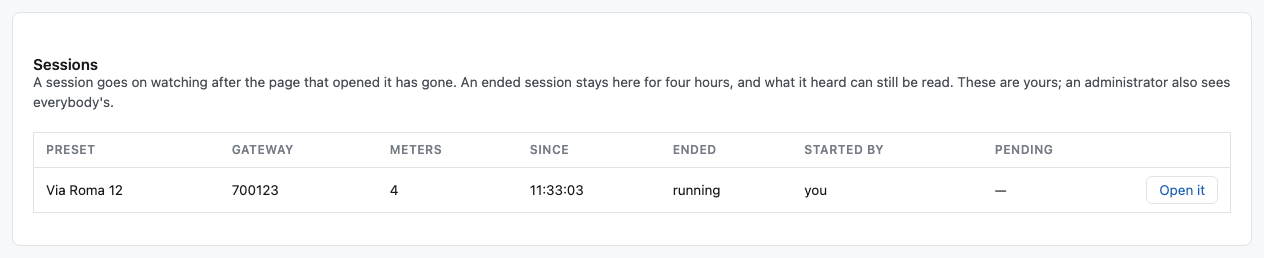
| Column | |
|---|---|
| Preset | The preset's name, where it came from the list. The broker's address, where somebody typed one. |
| Gateway | The gateway the session is watching; for several, how many, with their ids in the tooltip; or every gateway. |
| Meters | How many meters it has heard. |
| Since | When it was opened. |
| Ended | When it ended, or running. |
| Started by | you, or the name of the person who opened it. For the session of a logger, the logger and its name. |
| Pending | How many commands the session still has to get to its gateways: readouts, connection schedules, idle timeouts, firmware updates and restarts. The tooltip says how many of each. A dash for none. |
The session of a running logger is listed for every administrator. It has no Disconnect, and it does not end when nobody reads it: it ends when the logger is stopped.
An administrator sees every session on the bench. A user and a contractor see the ones they started. A visitor's session is in nobody's list, an administrator's included: there is no account to list it under.
A session still ends when nobody reads it. You have the 15 minutes under When the watching stops to come back — long enough to walk to the next riser, not long enough to leave until tomorrow. A readout goes on costing the gateway's SIM for as long as the session lives, which is why the bench does not keep one nobody is reading.
When the watching stops
Disconnect ends the session at once and stops the gateway's readout. The page stays where it is: it says You disconnected from this session. What it heard is still here., and the table, the log, the filters and Explore go on working, as they do when a session ends by itself (below). Press ← Back to return to the tabs.
A session also ends by itself:
- when nobody reads it for 15 minutes — you closed the tab, or the computer slept, and nobody has a watch link open. Signed in, you can open it again within those minutes: see Coming back to a session;
- after twelve hours, whatever you are doing.
When the connection to the page only drops, the page says Trying again and carries on where it was.
When the session has really ended, the page says This session has ended. What it heard is still here. The table, the log, the filters and Explore keep working, and a Connect again button opens a new session. The telegrams are held for four hours after the end, or for seven days when an administrator opened the session. After that, Explore answers that they are no longer held.
When it refuses
A refusal appears in a box under the form. The most common ones:
| The page says | What to do |
|---|---|
| That is not a public address, and this tool connects to brokers on the internet. | The broker's name leads to a private address. The bench connects only to public addresses, and to its own machine where the deployment allows it. |
| Port … is not a port this tool connects on. | The bench connects only on the MQTT ports the deployment allows. |
| No address could be found for … | The broker's name is misspelt, or does not exist. |
| A key must be 32 hexadecimal characters. | One of the keys is too short, too long, or not hex. |
| "…" is not a gateway id. | A gateway id is letters and digits. Separate several with commas. |
| "…" is not a serial number. | In Meters to expect: a serial number is up to eight digits. |
| You already have 4 connections open. | Close one, with Disconnect, before opening another. |
| This tool is holding as many connections as it will hold. | Too many people are using the bench. Try again in a few minutes. |
When the broker refuses, the form goes away and Connection says Failed, with the reason under it:
- The broker did not accept that username and password.
- The broker refused those credentials. The password may be right, but the account is not allowed on this broker.
- Nothing is listening on that port.
- The broker did not answer. The bench waits ten seconds.
- The broker's certificate could not be checked. Often a broker without TLS, reached with TLS ticked.
- Connected, but the broker refused the subscription. The account may not read that topic prefix.
A failed session still counts as one of your four until you press Disconnect.